Stencify: Tattoo Stencil Maker
Consumer MonkeyArt & Design
4.65.00 Reviews
- Version
- 0.1.38
- Installs
- 10.00K
- Age Rating
- Teen
Screenshots
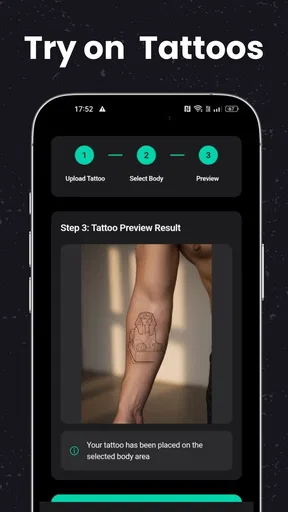
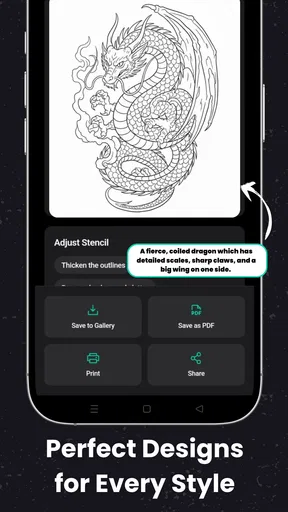
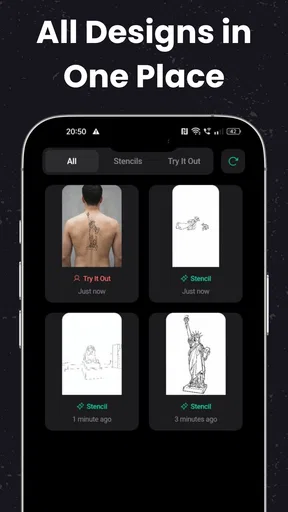
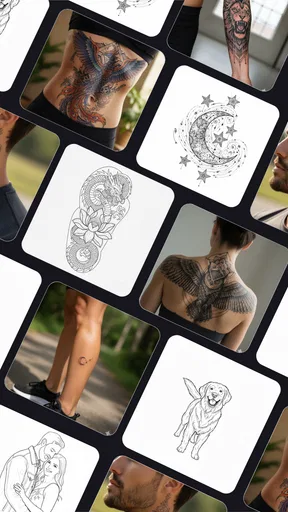
Our Review of Stencify: Tattoo Stencil Maker
 Analysis by Appyee
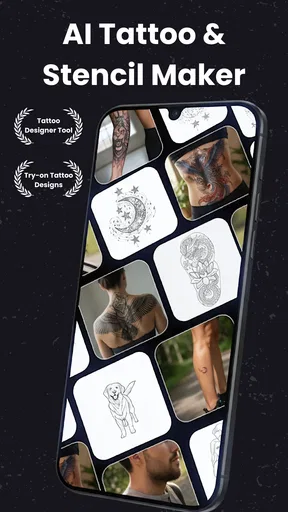
I approached Stencify: Tattoo Stencil Maker as a practical design tool rather than a novelty app. Its purpose is clear: help turn images into tattoo-ready stencil concepts and generate tattoo designs from a phone. That makes it interesting for people who are still exploring an idea, artists who want a quick starting point, and anyone who prefers testing a visual concept before taking it to a professional tattooist.
My overall impression is positive, but with an important qualification. This is not a replacement for an experienced tattoo artist, careful drawing software, or a proper stencil-printing workflow. It is better understood as a fast bridge between inspiration and a more usable reference image. The appeal comes from reducing the distance between “I have a picture in mind” and “I can show someone a clearer tattoo concept.”
As an Art & Design app from Consumer Monkey, it occupies a more specific space than a general photo editor. The focus is not simply making an image attractive on a screen. The useful question is whether the image can become a clean, readable basis for tattoo planning. That distinction affects how I judge every result: visual flair matters, but line clarity, composition, and how well the idea could translate to skin matter more.
From an ordinary image to a usable tattoo reference
I approach image-to-stencil tools as a way to make an idea easier to discuss, not as a shortcut to finished tattoo artwork. In this section, I focus on the choices that shape the workflow before conversion begins: what makes a useful source image, how I would judge the first result, and when a generated concept is better treated as a prompt than a blueprint. That distinction matters most when handing the image to a tattoo artist.
The first step is choosing the right source image
The quality of the final stencil begins before any conversion happens. A photo with a clear subject, strong separation from its background, and recognizable edges gives the app something workable. A busy group photo, a dim snapshot, or an image with several overlapping objects is much harder to turn into a convincing tattoo reference. This is one of the most important practical lessons because an automatic result can look impressive at a glance while still being unsuitable for a tattoo.
I would start with the simplest version of the idea, even if the final tattoo is meant to be detailed. For example, if I wanted a memorial design based on a pet, I would first use a well-lit portrait with the face unobstructed rather than a favorite but cluttered outdoor photo. That gives the conversion process a better chance of preserving the features that actually make the subject recognizable.
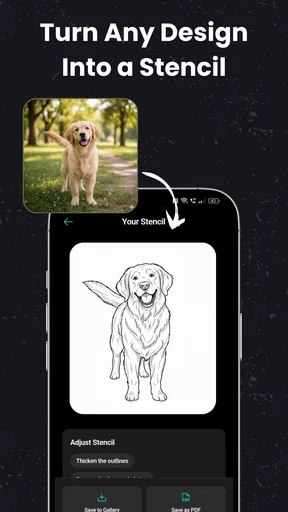
The app’s image-to-stencil concept is especially useful at the exploration stage. Instead of manually tracing every contour immediately, I can see which parts of an image survive simplification. That reveals whether the idea depends on tiny details that may disappear, or whether its main shape is strong enough to work as a tattoo.
Why the first output should be treated as a draft
A generated stencil is a starting point, not a guarantee of professional transfer quality. Tattoo designs have to work at a particular size, on a particular body area, with lines that remain readable as the tattoo ages. A phone screen can make thin marks and small gaps look perfectly visible even when they would be impractical in real use.
My advice is to inspect the result at the intended tattoo size rather than judging it only when zoomed in. Look for isolated fragments, accidental dark patches, and narrow spaces that could close up. If a face, animal, symbol, or lettering becomes ambiguous after simplification, the right response is usually to simplify the concept further, not to keep adding detail.
This is where the app can save time without pretending to solve the whole design problem. It lets me compare a source image with a more stencil-like interpretation quickly. The professional decision still belongs to the tattooist, who can adjust line weight, placement, scale, and anatomy for the person’s skin and chosen location.
Generated designs are best used for direction
The design-generation side is helpful when I know the subject but not the exact composition. I can use it to think through themes, silhouettes, and visual moods before committing to a drawing. That is valuable for someone who has a vague idea such as a botanical symbol, animal motif, or personal emblem but needs something concrete to discuss.
There is a trade-off, though. A generated concept may be visually appealing while lacking the personal detail that makes a tattoo meaningful. I would avoid treating the first attractive result as finished artwork. Instead, I would use it to identify what I like: the central shape, the direction of the lines, the balance between open and filled areas, or the relationship between text and imagery.
The strongest workflow is generate, simplify, inspect, and then discuss the result with a tattoo professional. That sequence keeps the app in its proper role and prevents a polished-looking screen image from being mistaken for a final tattoo specification.
What happens when the connection becomes part of the experience
Connectivity matters most during the parts of the experience that involve creating or processing content. If an image or design request needs to be handled beyond the device, the speed and reliability of the network can affect how quickly I reach a result. A strong connection makes experimentation feel natural; an unstable one can interrupt the creative rhythm, especially when I am trying several variations rather than making one deliberate design.
This changes how I would use it in everyday life. At home, I would prepare a small group of source images and explore them when I have a dependable connection. In a tattoo shop, I would not assume that every step will be instant simply because the app opens on my phone. I would keep the original images available and avoid making a time-sensitive appointment discussion depend on a last-second generation request.
The network issue is not just about waiting. It can influence how boldly I experiment. When processing feels slow, I am more likely to settle for the first acceptable result. When the connection is responsive, comparing a few approaches becomes easier. That makes connectivity part of the creative quality, even though it is not itself a design feature.
Using it on a phone while moving between ideas
A mobile screen is a natural fit for this kind of app because tattoo ideas often begin away from a desk. I can save a reference from a conversation, inspect a personal photo, or show a rough concept to a friend without opening a full desktop design program. The convenience is real, particularly during the early stage when I am collecting possibilities rather than producing final artwork.
Still, mobile convenience has limits. Small details are harder to evaluate accurately, and a phone display encourages quick approval. I would use the device for choosing a subject, comparing broad compositions, and preparing a discussion. For close inspection, I would enlarge the result carefully and, where possible, view it on a larger screen before treating it as a serious stencil reference.
A realistic example would be planning a small tribute tattoo during a lunch break. I could select a clear image of a family pet, convert it into a simplified reference, and notice whether the ears, eyes, and outline remain distinctive. Later, I could show that concept to an artist and ask what needs to change for the chosen body area. The app makes the conversation more specific, but it does not remove the need for that conversation.
Another mobile use is comparing ideas with someone else before booking a consultation. A friend may prefer a bold silhouette while I prefer a more detailed outline. Seeing both directions as stencil-style references makes the disagreement easier to discuss than relying on verbal descriptions. The key is to compare structure, not merely which preview looks more dramatic.
When a phone is not the best tool
I would skip using this as my main design environment if I needed precise vector construction, advanced lettering control, layered illustration, or exact print preparation. A dedicated drawing application is usually better for deliberate manual editing, while professional tattoo software and an artist’s experience are better for final preparation.
I would also be cautious if my concept depends on tiny ornamental details. The conversion process may help reveal the broad idea, but it cannot make a highly intricate design automatically suitable for every placement. A small tattoo on a curved or frequently moving area needs different decisions from a large piece on a flatter surface.
People who want a completely hand-drawn, personal design may also find the generated approach less satisfying. In that case, Stencify can still help with references, but a sketchbook or drawing app may better match the creative goal. Its value is highest when speed and visual exploration matter more than building every mark manually.
Recovering when a result or connection goes wrong
Any workflow that involves image processing can have disappointing moments. A result may lose an important feature, produce an overly dense area, or simply fail to match the idea in my head. The best recovery method is not to keep repeating the same request with the same image. I would change one variable at a time: use a cleaner source, crop more tightly, remove distracting background elements, or choose a simpler concept.
Keeping the original image separate is important. I would never treat the converted version as the only copy of a meaningful photograph. The original gives me a way to restart with a different crop or approach, and it remains useful if a tattoo artist wants to redraw the design from the source rather than from the automated interpretation.
If a connection interruption occurs during experimentation, I would pause instead of repeatedly tapping and creating confusion about what has completed. Once the app responds again, I would check which result is actually available before starting another attempt. This sounds minor, but it prevents an already cluttered idea process from becoming harder to follow.
A second recovery technique is to separate design judgment from technical judgment. If the result looks wrong, I first ask whether the source image is unsuitable or whether the concept itself needs simplification. If the app is responsive but the image remains unreadable, the problem is probably artistic rather than network-related. That distinction helps me make useful changes instead of blaming the wrong part of the workflow.
Being sensible with images and network use
Because the app works with images, I would choose source material thoughtfully. Personal photos, client references, and unfinished tattoo ideas can all be sensitive. I would avoid uploading anything that includes information I do not need for the design, such as unrelated people in the background or documents visible in the frame. Cropping is useful both creatively and as a basic data-conscious habit.
I would also prepare images before starting a long creative session. Selecting only the strongest references reduces unnecessary processing and makes the results easier to compare. If I am working with mobile data, that preparation can make the session more predictable, although the exact network behavior depends on how the app handles each operation.
For an artist, this matters even more when working with someone else’s image. I would get the client’s permission before using a personal photograph and would avoid treating the app as a private archive for every reference ever collected. The app can be part of a responsible workflow, but responsibility still comes from the person using it.
The free price makes trying the basic experience approachable, while in-app purchases range from around five dollars to nearly forty-eight dollars per item. I would therefore explore the free experience first and decide whether the paid options genuinely improve my workflow before spending anything. That is particularly important for casual users who may only need one concept rather than a continuing design tool.
How it compares with familiar alternatives
Compared with a general photo editor, this app has a clearer purpose. A photo editor gives me broad control over contrast, filters, cropping, and effects, but it does not necessarily guide the image toward a tattoo stencil concept. Stencify is more direct when the desired endpoint is a tattoo reference rather than an attractive edited photo.
Compared with a drawing app, it is faster for turning an existing image into a starting point. A drawing app wins when I want to build a design from scratch, control every layer, or manually correct each contour. The trade-off is that manual work takes more time and skill. I see Stencify as the quicker first pass, not the more powerful illustration environment.
Compared with asking a tattoo artist to begin from a verbal description, it gives both sides something visual to discuss. That can make a consultation more productive. However, an artist’s custom drawing will usually be better suited to anatomy, placement, line longevity, and the client’s exact preferences. The app helps me arrive prepared; it should not be used to pressure an artist into copying an unsuitable automated result.
Compared with a paper sketch, the app is convenient for people who do not draw confidently and want to test an image-based idea. Paper remains better for spontaneous marks and personal expression. If the emotional value lies in the imperfections of a handmade drawing, a digital conversion may remove some of what makes the concept special.
Who will get the most from it
I think it is a good match for first-time tattoo planners, people converting meaningful photographs into simplified concepts, and artists who want a quick visual prompt before refining a design themselves. It is also useful for comparing broad directions without spending an hour manually tracing every possibility.
The age rating is Teen, so younger users should still approach the subject responsibly and involve an appropriate adult where necessary. A tattoo is a lasting decision, and the app’s ability to make an idea appear quickly should not encourage rushed choices about permanence, placement, or personal imagery.
People who should probably look elsewhere are those needing guaranteed production-ready stencils, detailed manual illustration controls, exact typography tools, or a fully offline creative workflow. A professional artist, a dedicated drawing program, or a traditional design process may be the better choice depending on the goal.
Everyday usability and the current release
The app has an average rating of 4.6 from roughly one hundred fifteen ratings, with over ten thousand installs. Those figures suggest that it has found an audience, although they should be read as a snapshot rather than proof that every image type will work equally well. My own judgment is that its usefulness depends heavily on choosing suitable source material and being willing to refine the result.
It is currently at version 0.1.38, which gives the product a relatively early-stage feel. That does not make it unusable, but it does make me more conscious of keeping the original files, checking outputs carefully, and avoiding assumptions that a quick result is a finished professional asset. The developer, Consumer Monkey, has positioned the app around a focused problem, and that focus is its main strength.
Since it is free to install, I would test it with a non-sensitive image before using an important personal photograph. That first session should answer practical questions for me: does the conversion preserve the subject, is the result readable at the intended size, and does the workflow fit the way I want to plan a tattoo? If the answers are yes, the paid items become a considered choice rather than a blind purchase.
My final view on connectivity and creative value
Connectivity shapes the experience most during image processing and repeated experimentation. A reliable network supports a smoother creative rhythm, while interruptions can make the app feel less useful precisely when I am comparing several ideas. I would therefore use it proactively: prepare clean images, keep originals, allow time for processing, and avoid depending on a last-minute result during an appointment.
Even with that qualification, I like the role this app can play. It turns an uncertain idea into something visible enough to critique, and that is often the hardest part of planning a tattoo. The result still needs human judgment, especially for scale, line weight, placement, and long-term readability, but the app can make the first conversation much easier.
My recommendation is straightforward: try it if you want a fast tattoo concept from an image or need help shaping an idea before speaking with an artist. Use it as a sketching partner, not as a final authority. For quick visual exploration on a phone, Stencify is a useful and approachable option; for precise professional finishing, a tattoo artist and a more controlled design workflow remain the better choice.
Verdict
Strengths of Stencify: Tattoo Stencil Maker
- Creates clean tattoo stencils from photos in just a few steps.
- Useful tools for adjusting contrast, size, and placement.
- Helps preview designs before transferring them to skin.
- Supports custom artwork instead of relying only on preset designs.
- Simple interface makes it approachable for beginners and artists.
Limitations of Stencify: Tattoo Stencil Maker
- Final stencil quality depends heavily on the clarity of the source image.
- Some advanced editing options may require in-app purchases.
- Small details can become unclear when converting complex artwork.
- The app does not replace professional tattoo transfer equipment.
- Results may vary depending on printer, paper, and transfer method.
Similar Picks in This Category
View All
Canva: AI Photo & Video Editor
Canva4.8

PENUP – Drawing-sharing SNS
Samsung Electronics Co., Ltd.4.5

Crafto
Kutumb App4.6

Sketchbook
Sketchbook4.1

ibis Paint X
ibis inc.4.5

Adobe Express: AI Photo, Video
Adobe4.6
Frequently Asked Questions
What is Stencify: Tattoo Stencil Maker used for?
Stencify: Tattoo Stencil Maker is designed to help tattoo artists and enthusiasts turn images, sketches, or reference photos into stencil-style designs. It can be useful for preparing artwork before a tattoo session, simplifying visual details, and creating a clearer outline that is easier to transfer onto the skin. It is a design and preparation tool, not a replacement for professional tattoo equipment or technique.
Can I use my own photos and tattoo designs in Stencify?
Yes, the app is intended for working with personal images and tattoo references. You can typically import a photo or artwork from your device, adjust its appearance, and refine the result into a stencil-like design. For the cleanest outcome, use a well-lit image with strong contrast and clearly defined lines. Very detailed or blurry photos may require additional editing before they are suitable for stencil preparation.
Does Stencify print tattoo stencils directly?
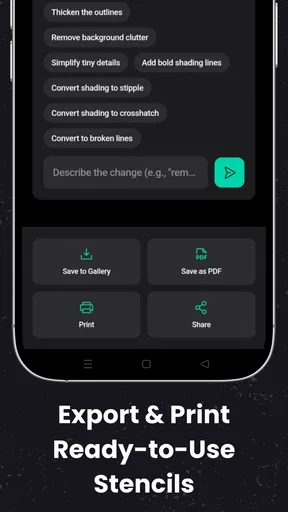
Stencify can help prepare and export a design, but whether it prints directly depends on the device, operating system, and the printer or transfer-paper workflow you use. In many cases, the finished stencil image must be saved or shared and then printed through another app or computer. Always check the final size, orientation, and line clarity before printing or transferring the design.
Is Stencify suitable for professional tattoo artists?
The app can be a convenient addition to a professional artist’s workflow, especially for quickly testing references, simplifying images, and preparing preliminary outlines. However, professional artists should review every result manually because automated effects may remove important details, create uneven lines, or produce areas that do not transfer well to skin. The final stencil should always be adjusted according to the tattoo’s size, placement, and style.
Is Stencify: Tattoo Stencil Maker free to download and use?
The app’s availability, pricing, advertisements, and premium tools may vary between Android and iOS and can change with updates. Before downloading, review the store listing for information about in-app purchases, subscriptions, export restrictions, and available features. A free installation does not necessarily mean every editing or saving option is included without payment, so checking the current terms is recommended.
